THE APP
 CTRLbot IoT // android v1.0
the control system is the app.
CTRLbot IoT // android v1.0
the control system is the app.
io.ctrlbot.iot
CTRLbot IoT turns an Android phone or tablet into a standalone professional AV control system. Connect to compatible equipment, test commands in real time, and hand the room over ready to use. No separate CTRLbot control processor or server.
signal.test() // live
cb — 001
THE CONTROL SYSTEM IS THE APP
nothing in the rackTraditional pro AV control splits programming, processing and operation across several components. A programmer needs a laptop and specialist software to configure a dedicated processor, which then serves an interface to a touch panel or tablet. CTRLbot IoT combines those jobs on the Android device in your hand, for installers, integrators, technicians and system developers.
The traditional path puts a processor in the rack before the room can say a word.
CTRLbot IoT configures and runs the room from a phone or tablet, installed from Google Play.
cb — 002
DEVICE. CONNECT. ACTIVITIES. EUI.
four stages, one workflowActivities and the End User Interface become available once the first device connection exists. Normal configuration changes are saved as you go.
wf—01Device
Search the bundled catalog by manufacturer or model, filter by equipment type, switch between IP_RS232 and IR, and review supported models and control defaults before adding the equipment.
wf—02Connect
Enter address, port, transport and credentials. Choose ASCII or hexadecimal encoding and the line ending the device expects, then send live commands and read the responses.
wf—03Activities
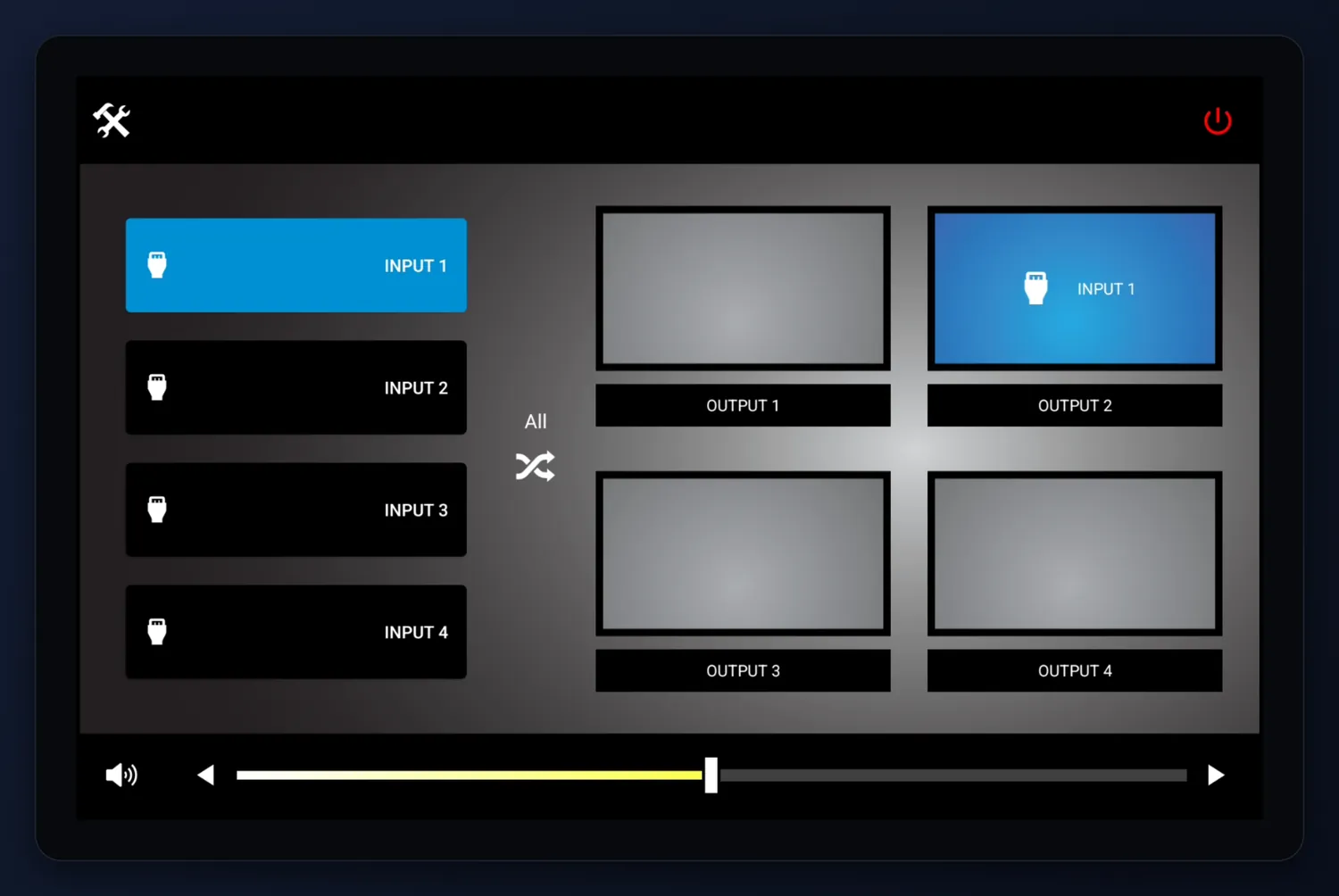
Review the generated Power On and Power Off presets, set up Many-to-One or Many-to-Many switching, relabel inputs, and map the volume and mute commands the gear exposes.
wf—04EUI
Hand the room over through a full-screen control view with the setup navigation removed. Press and hold the CTRLbot mark for two seconds to get back.
cb — 002a
GENERATED, NOT DRAWN
setup and interface creation, one workflow
device.find()
A driver is a translation layer. It carries the commands, transport defaults and capability information for its supported models, so nobody hand-crafts command strings.
See what it drives ↓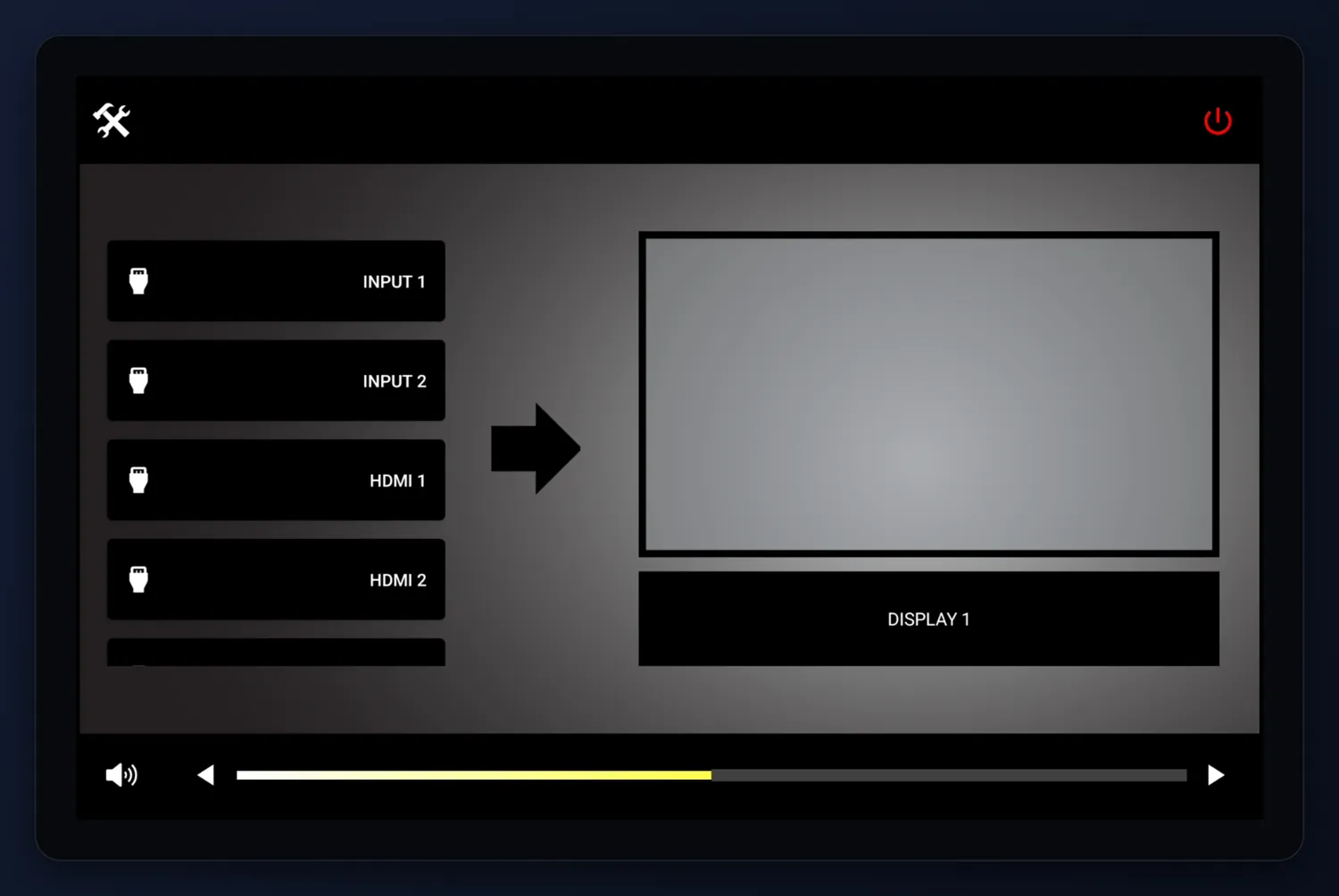 drivers/index.json
 connection.create/
connect.verify()
Nobody designs a screen. Controls are generated from each driver's capabilities, so the interface grows as equipment is added rather than being drawn page by page.
Saved connections can be searched, copied, edited or deleted at any time.
activities.prepare()
As connections are added, CTRLbot assembles the system Power On and Power Off presets, the switching arrangement and the audio mappings from the equipment and the commands it exposes.
A device joins the generated power presets only when both a discrete Power On and a discrete Power Off command can be resolved — a toggle cannot guarantee the final state.
cb — 003
TEST IT BEFORE YOU BUILD ON IT
terminal workbench
connection.test()
Fire commands. Watch it answer.
Point a driver at a real device, then send commands straight at it. ASCII or HEX, with the carriage return and line ending the device expects. Add and remove test rows on the fly.
This is how you confirm the gear is reachable and the driver is right, before you build anything on top of it.
>
cb — 004
WHAT IT DRIVES
The driver catalog ships inside the app, so it can be searched without downloading anything. Current bundled categories are projectors, displays, switchers, and a limited network endpoint profile. Counts are from the snapshot generated 21 July 2026 and change as the catalog is revised. A compatible driver and a reachable control path are required — confirm the real equipment during live testing.
73 manufacturers / 124 drivers / 378 models / 7,561 commands
cb — 005
TWO MODES. ONE APP.
one button flips itdeviceFind the right driver
Search the bundled catalog by manufacturer or model, filter by equipment type, switch between IP_RS232 and IR, and review supported models and control defaults before adding the equipment.
connectConfigure and verify
Enter address, port, transport and credentials. Choose ASCII or hexadecimal encoding and the line ending the device expects, then send live commands and read the responses.
activitiesPrepare the room
CTRLbot builds system Power On and Power Off presets as connections are added. Set up Many-to-One or Many-to-Many switching, relabel inputs, and map the volume and mute commands the gear exposes.
system powerStart and shut the room
A full-screen room-control view with the setup navigation removed. Power On and Power Off run as sequences assembled from the configured equipment.
routingPick a source
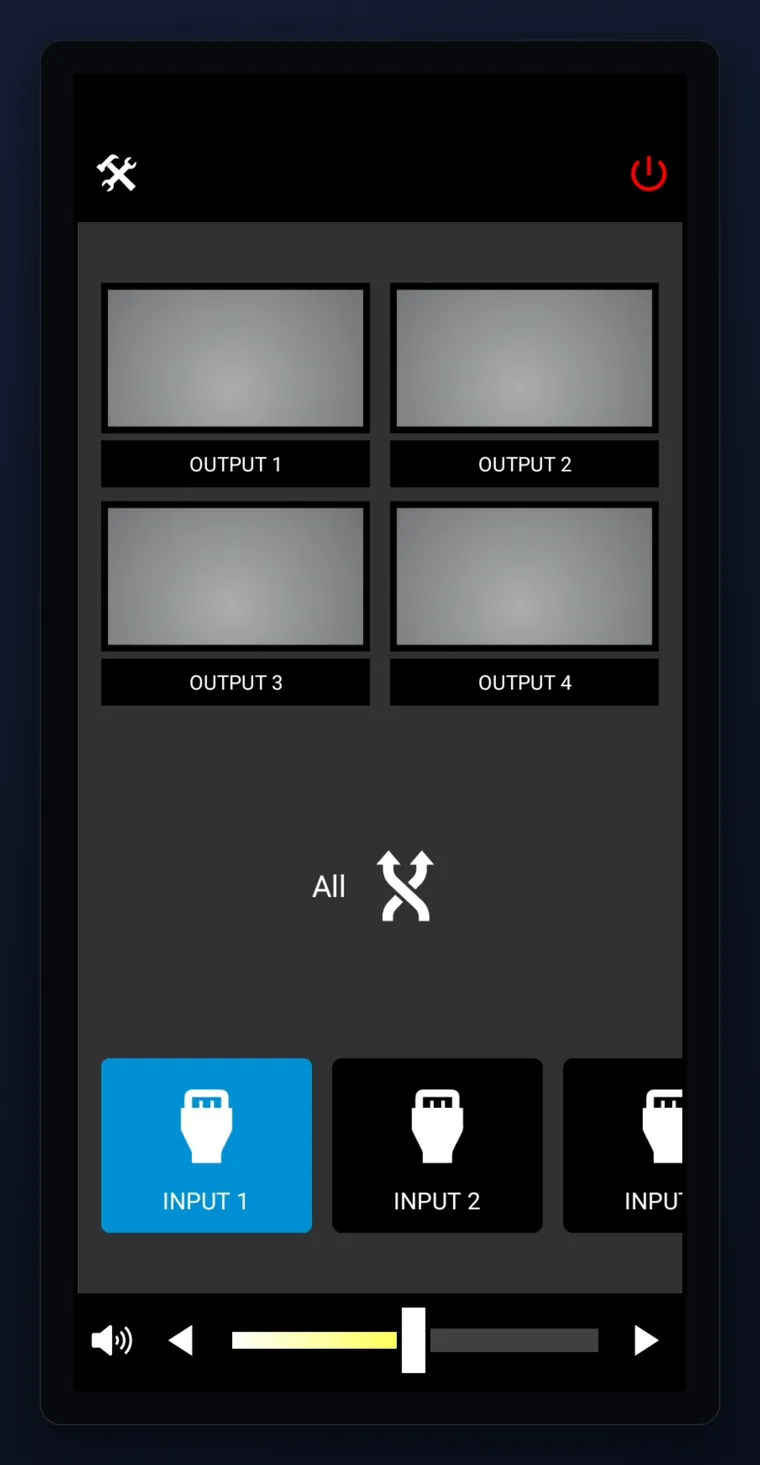
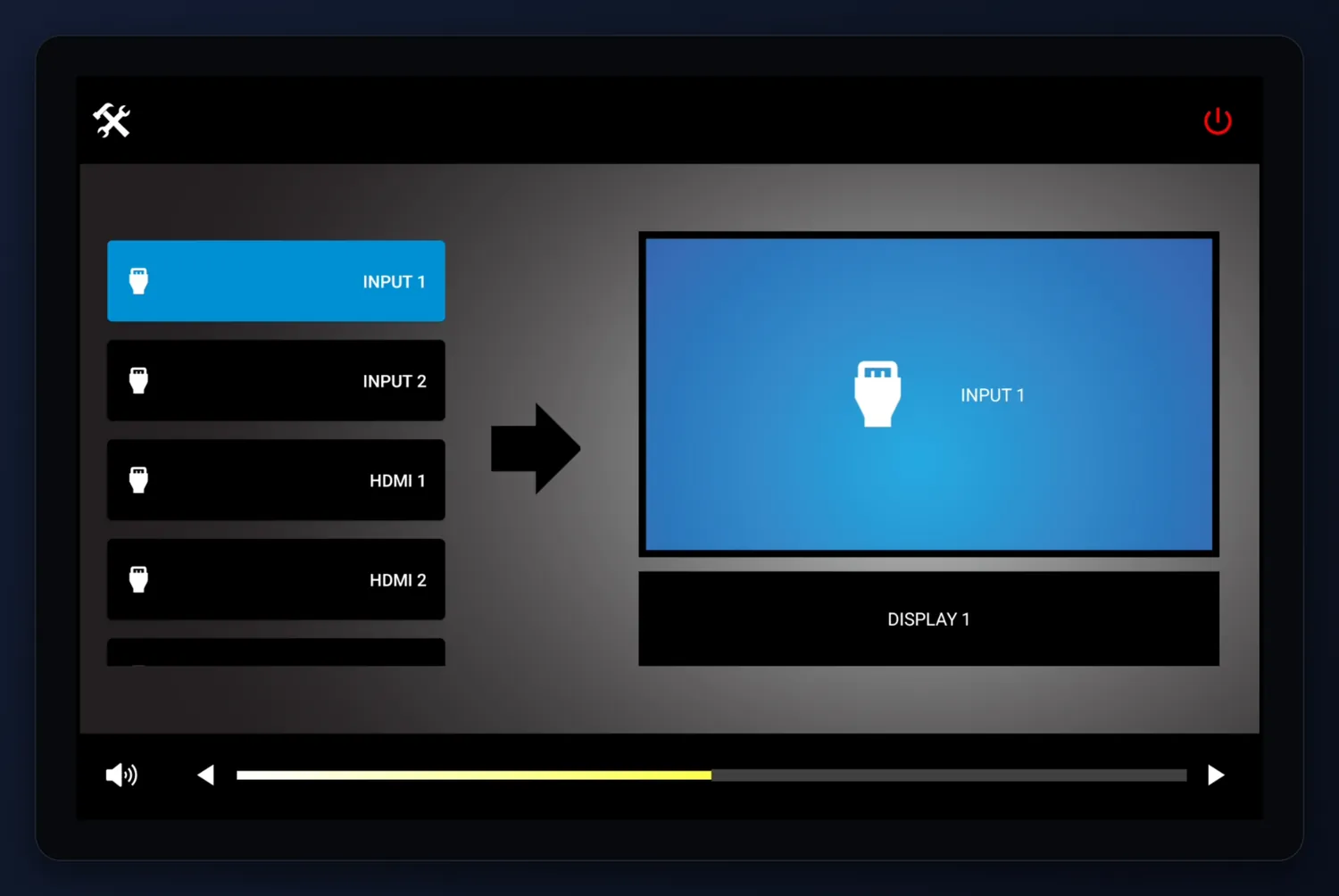
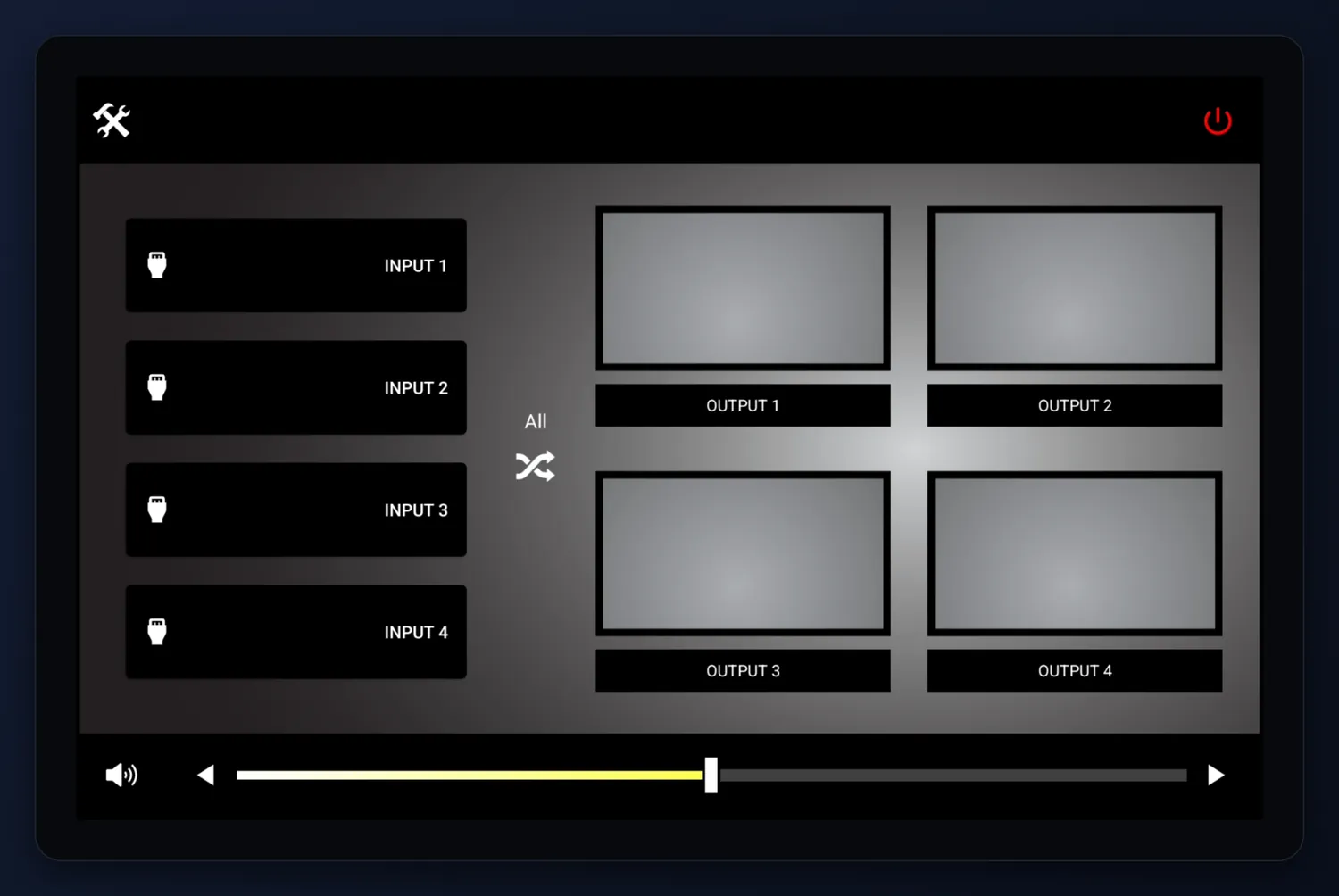
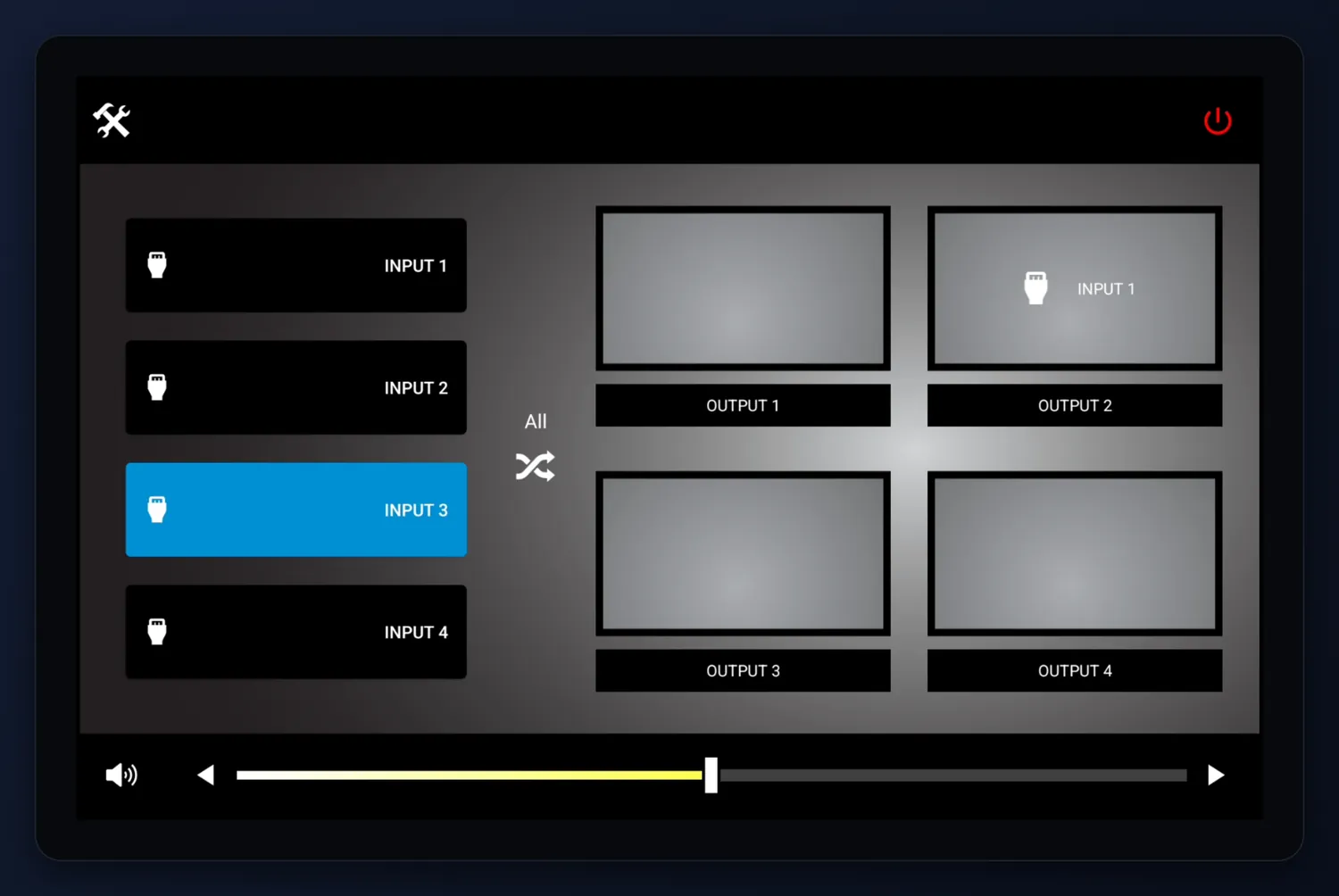
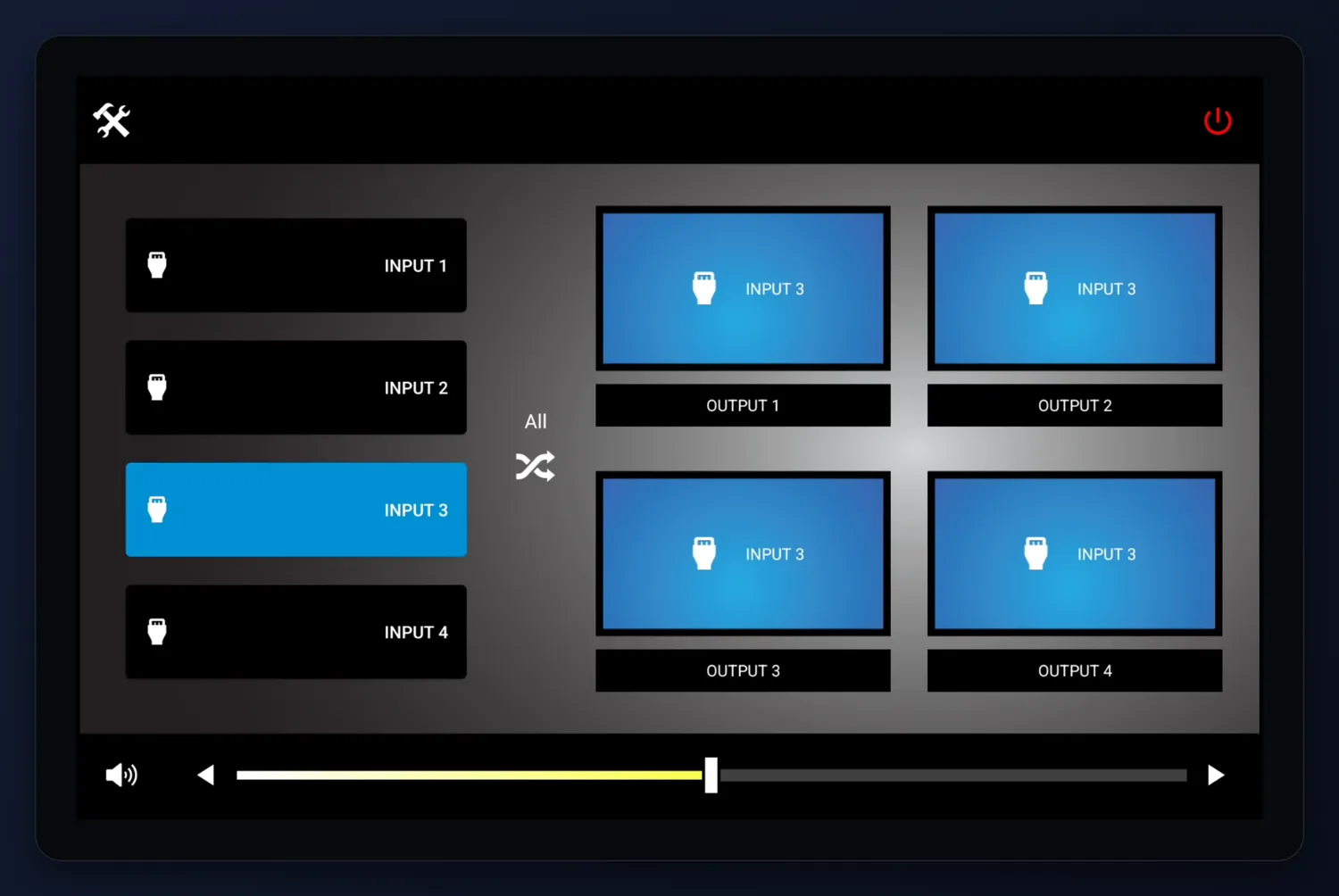
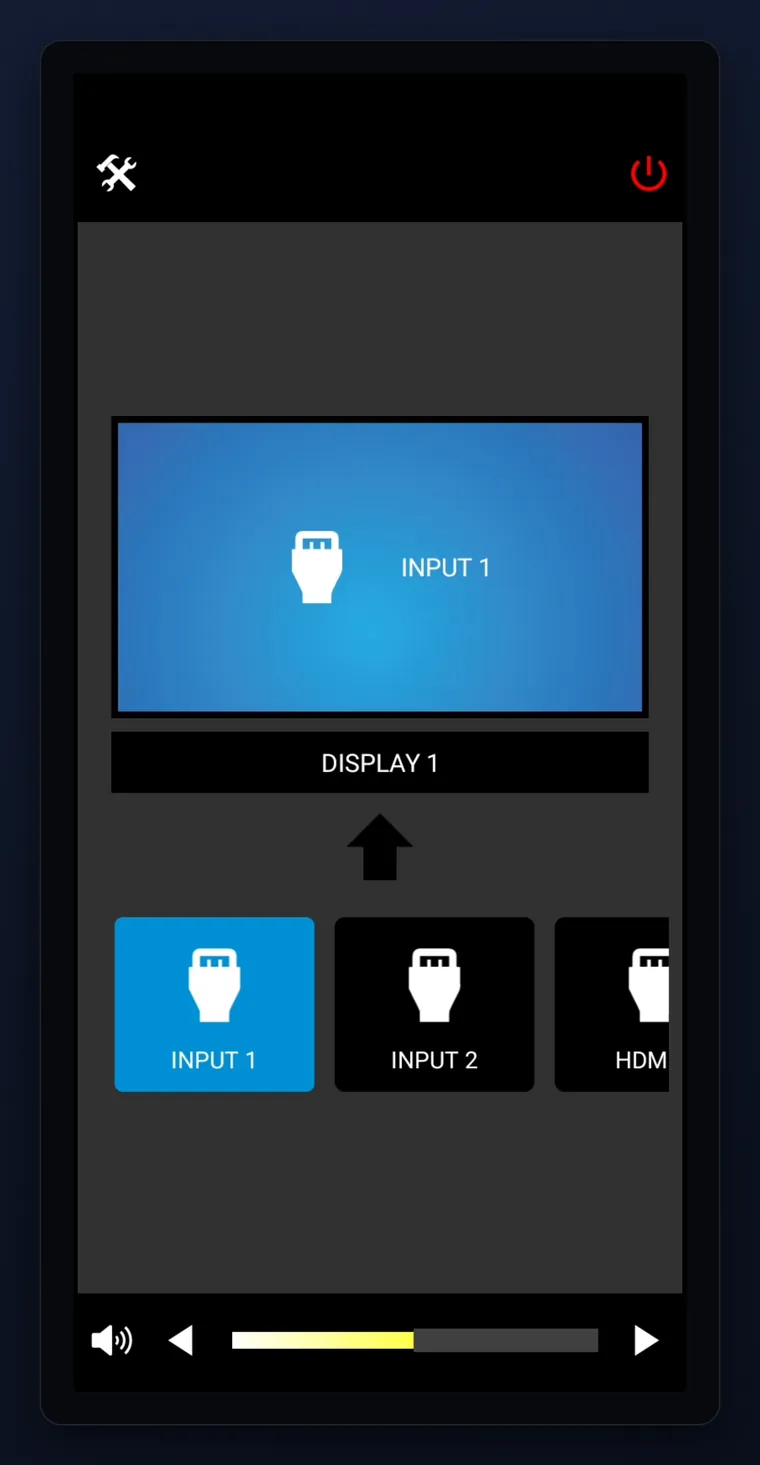
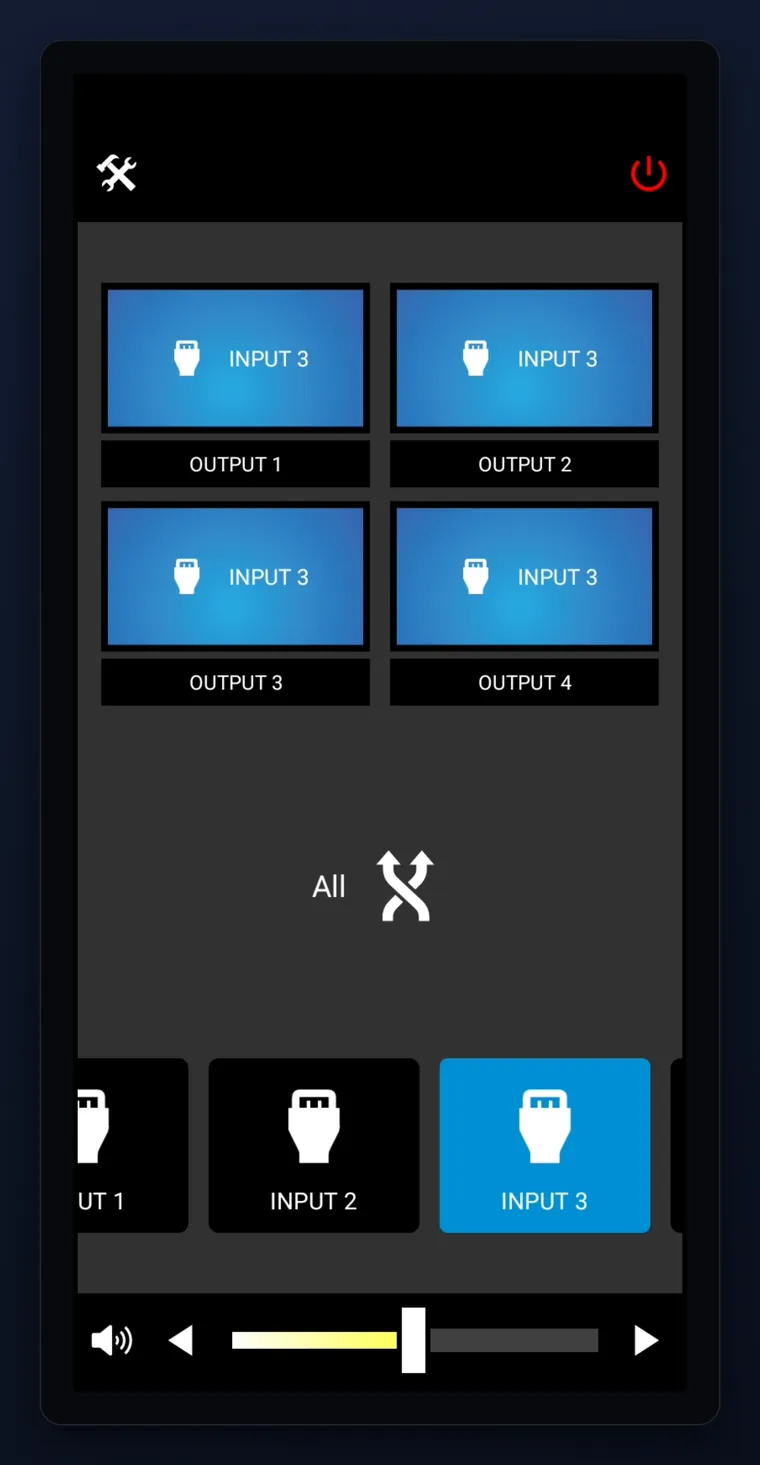
Many-to-One source selection and Many-to-Many matrix routing, using the room-friendly labels and icons set during configuration instead of technical port names.
volume + muteOnly what is supported
Volume up and down, direct adjustment where a Volume Set range exists, and speaker or microphone mute when mapped. Press and hold the CTRLbot mark for two seconds to return to setup.
cb — 006
THE END USER INTERFACE
what the room getsThe EUI is built from the completed configuration, not designed screen by screen. It shows system power, the switching arrangement that was set up, and only the volume and mute controls the selected equipment actually exposes. Same configuration, phone or tablet.
cb — 007
HOW IT CONNECTS
straight to the addresses you configureDevice-control traffic goes directly from the Android device to your equipment over the reachable network. CTRLbot does not relay it through its own servers. RS-232 and IR installations need a compatible Global Cache endpoint on that network.
tx—01Raw TCP
Commands go straight to the device's address and port.
tx—02Telnet
For compatible legacy devices. Unencrypted, so the app warns first.
tx—03SSH
Host keys are verified on connection and stored locally.
tx—04RS-232 Serial
Through a compatible Global Cache network endpoint.
tx—05Infrared
Through a compatible Global Cache IR endpoint.
sc—01Encrypted credentials
Android Keystore-backed storage, never plain text in the room database.
sc—02Local configuration
Room config stays on the device. Android backup is disabled for it.
sc—03Nothing watching
No analytics, no user tracking, no advertising in the app.
cb — 008
THE TRADE
what it deliberately is notClear boundaries make the promise credible. There is no graphics builder: the interface is generated from the system configuration instead of being designed screen by screen. Customization covers equipment, mappings, labels, icons, sequences and settings, not unrestricted interface design. CTRLbot drives equipment it has a compatible driver and control path for, the Android device has to be able to reach that equipment, and this release is Android only.
bd—01No graphics builder
The interface is generated from configuration, not drawn page by page.
bd—02Not "no hardware, ever"
True for direct-IP control. RS-232 and IR need a compatible Global Cache endpoint.
bd—03Not fully automatic
CTRLbot prepares the controls; you still verify routes, commands, labels, timing and network behaviour.
bd—04Android only
In the current release. The device must be able to reach the equipment.
bd—05Not yet in the EUI
Camera control, lighting control, AV-over-IP encoder/decoder grid switching, and a dedicated DSP driver catalog.
The payoff: configure, test and operate a compatible room from the device in your pocket, with no separate control processor to program.
cb — 009
THE ASSISTANT COMES ALONG
one integration pointSelecting the CTRLbot header opens the assistant in a secured in-app view, and the app identifies itself — so CTRLbot.AI switches to AV mode. The CTRLbot IoT FAQ leads instead of waiting, "switcher", "driver" and "matrix" resolve toward professional AV rather than general IT, and app questions are answered from the app's own documentation. It stays a help resource: it never discovers devices, configures connections, or carries any device-control traffic.